Before you start
- Staff must have login access.
- The business must already have at least one branch and reward configured.
- Keep a test customer nearby for practice.
Quick screenshots
Small visual references so users can recognise the right screen fast.
Video tutorials
Staff quickstart video
1 min 15 secA short counter workflow walkthrough for finding customers, awarding stamps, and redeeming rewards.
Steps
1
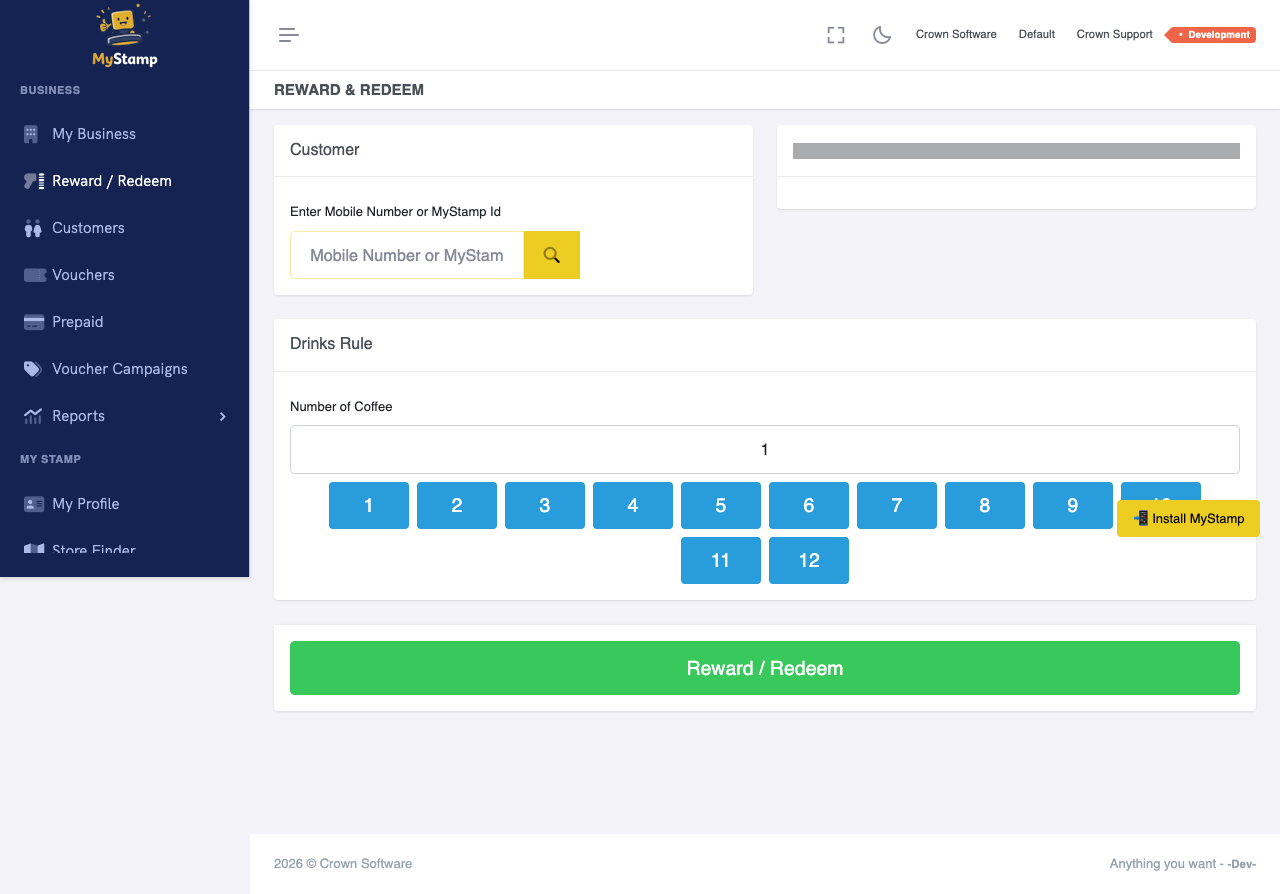
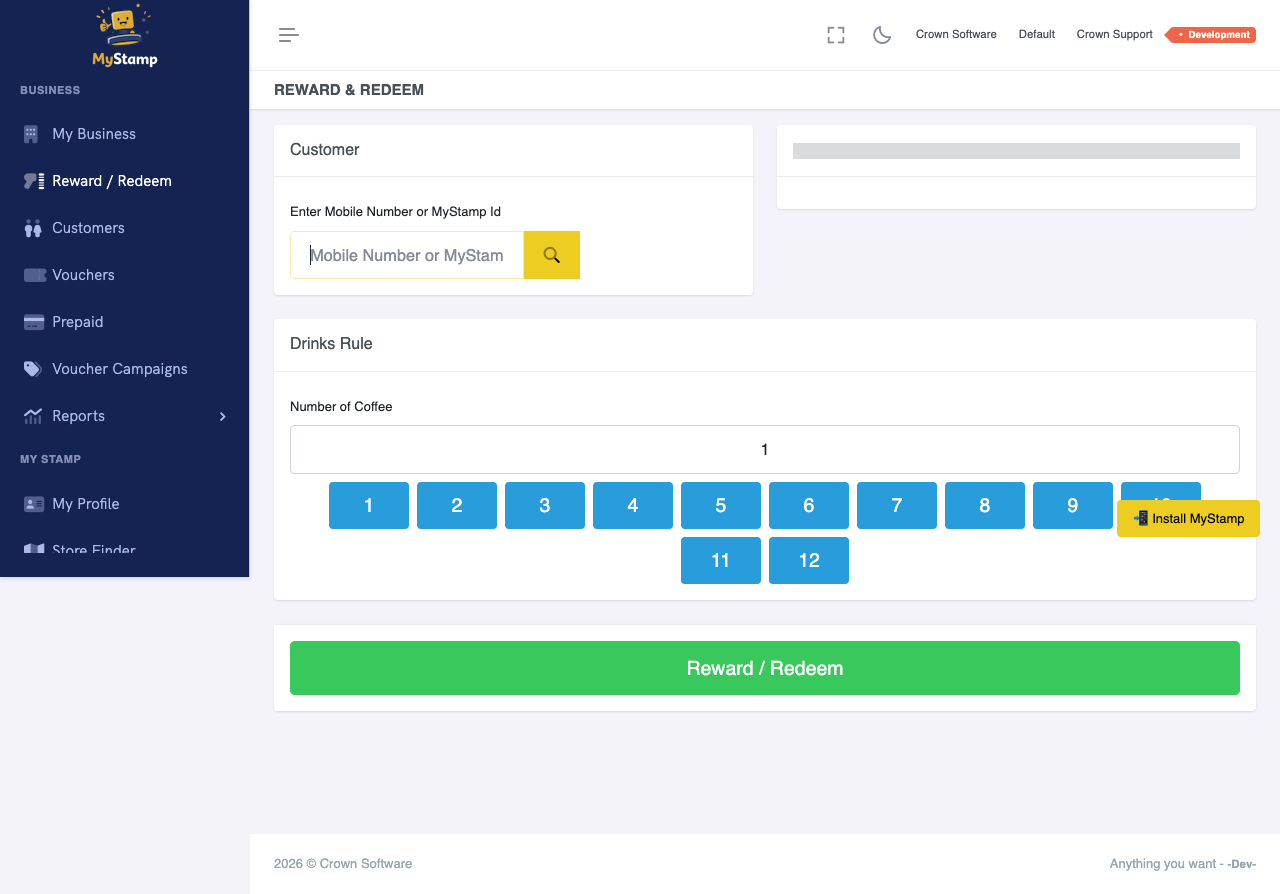
Open Reward / Redeem
From the staff menu, open the reward or redeem screen used at the counter.
This is the main screen staff should learn first.
2
Find the customer
Search by phone number, scan their QR code, or use the customer identifier shown in the app.
Always confirm you selected the correct customer before issuing stamps.
3
Award the stamp
Select the correct branch or offer, then award the stamp after the customer has completed the purchase.
Award stamps after payment, not before.
4
Redeem when available
If MyStamp shows that the customer has earned a reward, confirm with the customer and redeem it in the system.
Redeeming in MyStamp prevents the same reward being used twice.
5
Use the counter script
Say: We use MyStamp for digital rewards. Give me your number or scan your QR code and I’ll add your stamp.
Simple scripts keep the queue moving.
Success check
- Staff can find a customer in under 30 seconds.
- Staff can award one test stamp.
- Staff know when to redeem instead of award.
- The customer can see progress after the transaction.
Common mistakes
- Issuing stamps to the wrong customer.
- Forgetting to redeem the reward after giving the free item.
- Trying to explain every feature to customers at the till.